
Add to Copilot
Open Microsoft Copilot Chat with your work account. Use a draft your agency allows you to share.
Open Microsoft Copilot Chat (opens in a new tab)
Using Agent Builder? Configure an agent with the Workbench skill.
Review in chat without browsing
Includes 22 Style Manual checks. Paste it into Copilot Chat Basic or Premium, then add your draft when asked.
Read the prompt
Install the reusable skill
Use this option if you have Copilot Premium and your workspace allows skill uploads.
Download the Copilot skill ZIP
Already installed? Check that Copilot can read the skill.
-
Open More agents
In Copilot Chat, open Agents in the sidebar and select More agents.
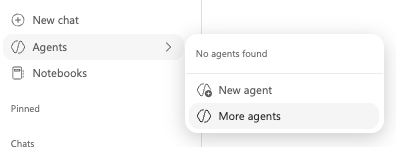
-
Choose Upload skill
Open the arrow menu beside Add, then select Upload skill.
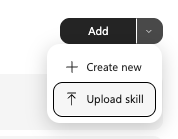
-
Choose the downloaded ZIP
Drop
ausgov-style-workbench.zipinto the upload window or click the box to browse for it. Keep the ZIP packed. If your browser adds a number to the filename, restore the original name before uploading.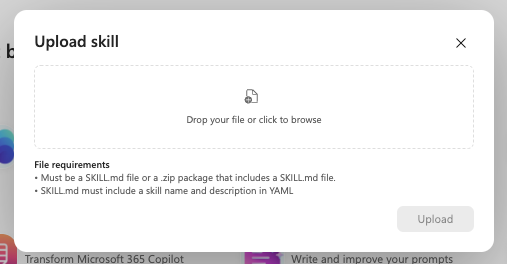
-
Upload the skill
Check that the ZIP appears, then select Upload.
-
Save and open the skill
Check the skill name and description, then save it. When Copilot says Skill added, select Try it.
Check that Copilot can read the skill
If you’ve closed the upload message, start a new chat in the same work account and select ausgov-style-workbench from Agents & Skills.
Paste this into the chat before adding a draft.
Read the selected ausgov-style-workbench skill’s SKILL.md and bundled check register. Tell me the skill version and the first writing check’s ID and source ID. Use the selected skill’s files without browsing or running scripts. If a file is unavailable, tell me which one. Wait for my draft.
Look for plain-word and sm-src-173. If they match, add your draft and ask Copilot to start the review.
If Copilot can’t open the skill or Upload skill is missing, use the offline review prompt for a targeted review in chat.
Check your Copilot licence (opens in a new tab) · Microsoft’s skill upload guide (opens in a new tab)